

Introduction
Every dedicated PC gamer understands the profound frustration of a perfectly executed maneuver ruined by a sudden drop in frame rate, a jarring stutter, or an unresponsive input. In the dynamic world of PC gaming, where milliseconds can dictate victory or defeat, a smooth and responsive experience is not merely a luxury—it is a fundamental requirement. Whether you are immersing yourself in sprawling open-world narratives, engaging in high-stakes competitive esports, or simply enjoying casual gaming sessions, optimal performance ensures that your focus remains on the action, not on technical impediments.
However, the term “lag” is often used broadly, encompassing a variety of distinct technical issues that can plague a gaming system. Effective troubleshooting and optimization hinge on accurately identifying the specific type of performance bottleneck affecting your gameplay. This comprehensive guide is meticulously crafted to demystify the root causes of common PC gaming performance issues and provide a structured, step-by-step approach to resolve them. By implementing these strategies, you will learn to significantly boost your Frames Per Second (FPS), minimize input delay, stabilize your network connection, and ultimately achieve a consistently smoother, more enjoyable gaming experience.
Understanding the Nuances of Lag: Graphics, Stutter, Input, and Network
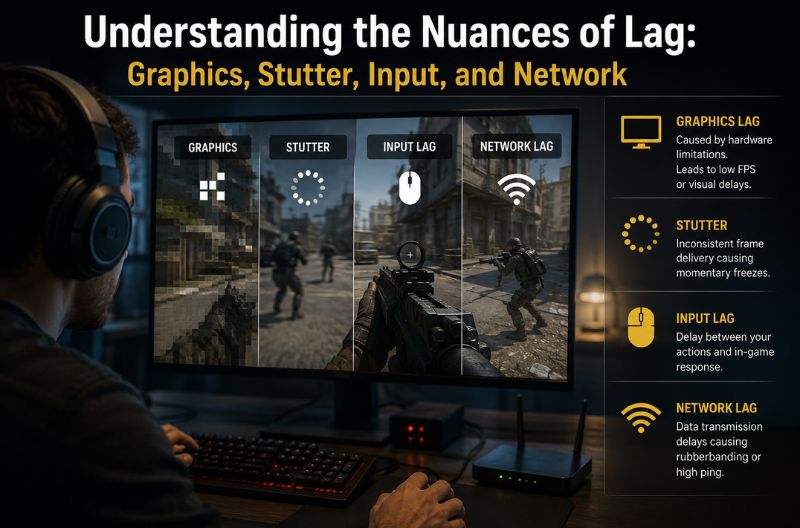
Before embarking on any optimization efforts, it is paramount to accurately diagnose the specific form of “lag” you are encountering. Applying network optimization techniques to a graphics-related issue, for instance, will yield little to no improvement. Here, we delineate the primary categories of performance degradation in PC gaming:
Graphics Lag (Low FPS)
Definition: Graphics lag, commonly manifested as low Frames Per Second (FPS), occurs when your computer’s graphics processing unit (GPU) and central processing unit (CPU) are unable to render and deliver new frames to your monitor at a sufficiently high rate. This results in a visual experience that appears sluggish, choppy, or unresponsive.
Symptoms: Noticeable choppiness, visual tearing (without V-Sync), delayed on-screen reactions to your commands, and a general lack of fluidity, particularly during graphically intensive sequences such as large explosions, complex environmental effects, or crowded scenes.
Primary Causes: Insufficient GPU power, outdated graphics drivers, overly demanding in-game graphics settings, CPU bottlenecking, or inadequate system RAM.
Stutter Lag (Hitching or Micro-Stutters)
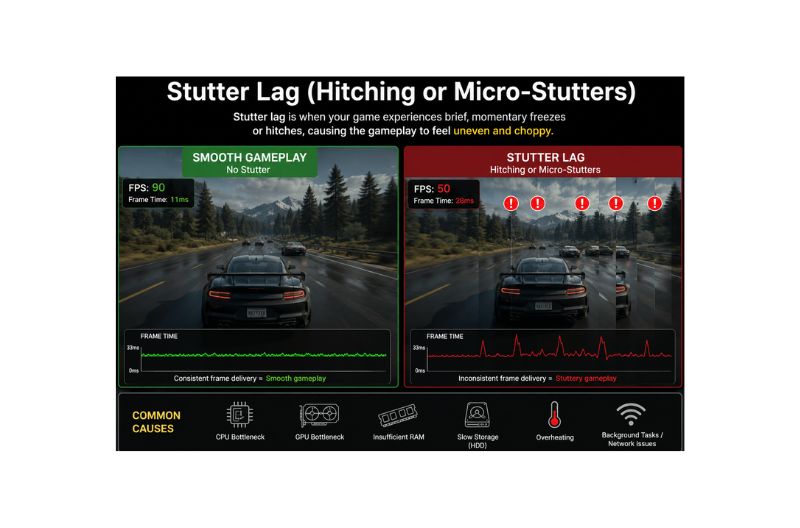
Definition: Stutter lag refers to brief, momentary freezes or hitches in gameplay, even when your average FPS might appear high. Unlike consistent low FPS, stuttering is intermittent and often more jarring, disrupting the flow of the game.
Symptoms: The game briefly pauses or skips frames, creating a jerky visual experience. This often occurs when entering new areas, during rapid camera movements, or when new game assets (textures, models, audio) are being loaded.
Primary Causes: Slow storage devices (HDDs), insufficient or slow RAM/VRAM, background processes consuming resources, CPU spikes, or driver conflicts.
Input Lag
Definition: Input lag is the measurable delay between an action performed on an input device (e.g., mouse click, keyboard press) and the corresponding reaction displayed on the screen. Even a few milliseconds of input lag can significantly impact precision and responsiveness, especially in competitive gaming.
Symptoms: A feeling of disconnect between your physical actions and the character’s movements, delayed aiming, or shots that feel like they don’t register instantly.
Primary Causes: V-Sync enabled without adaptive sync, high graphics settings, display processing delays, outdated input device drivers, or excessive background processes.
Network Lag (High Ping or Latency)
Definition: Network lag, commonly referred to as high ping or latency, is a delay in the communication between your gaming PC and the game server. This type of lag is exclusively relevant to online multiplayer gaming.
Symptoms: “Rubberbanding” (your character teleports back to a previous position), delayed hit registration, characters appearing to move erratically, desynchronization with other players, or complete disconnections from game servers.
Primary Causes: Slow internet connection, high network congestion, Wi-Fi interference, distant game servers, outdated network drivers, or bandwidth-intensive background applications.
Comprehensive System-Level Optimizations for Windows
Your Windows operating system is the foundation upon which your games run. Optimizing its settings ensures that maximum resources are dedicated to your gaming experience.
Enable Windows Game Mode
Windows 10 and the latest Windows 11 versions incorporate a dedicated “Game Mode” feature designed to enhance gaming performance. When activated, Game Mode intelligently prioritizes CPU and GPU resources for the active game, while simultaneously suppressing background activities such as Windows updates, notifications, and non-essential background processes. This helps to stabilize frame rates and minimize potential interruptions.
How to Enable: Search for “Game Mode settings” in the Windows Start menu. In the settings window, ensure the “Game Mode” toggle is set to “On”. A system restart is typically not required for this change.
Adjust Power Settings for Maximum Performance
By default, Windows often employs a “Balanced” power plan to conserve energy. While suitable for general computing, this setting can inadvertently throttle your CPU’s performance during demanding gaming sessions. For optimal gaming, especially on desktop PCs, it is crucial to configure your system to prioritize performance over power efficiency.
How to Configure:
1.
Open the Control Panel and navigate to Power Options.
2.
Select the “High Performance” or, if available, the “Ultimate Performance” plan. The Ultimate Performance plan is often hidden and can be enabled via a specific command in PowerShell (search online for instructions if not visible).
3.
Click “Change plan settings” next to your chosen plan, then “Change advanced power settings.”
4.
Within the advanced settings, ensure that:
•
PCI Express > Link State Power Management is set to “Off” or “Maximum Performance.”
•
Processor power management > Minimum processor state is set to “100%”.
•
Hard disk > Turn off hard disk after is set to “Never” (or a very high number).
Laptop Specifics: If you are gaming on a laptop, always ensure it is plugged into its power adapter. Battery power alone cannot consistently deliver the necessary wattage to sustain maximum GPU and CPU clock speeds, leading to significant performance degradation.
Enable Hardware-Accelerated GPU Scheduling
Hardware-Accelerated GPU Scheduling (HAGS), a staple feature in modern Windows 11 versions, allows your graphics card to directly manage its own video memory, bypassing some of the operating system’s overhead. This can lead to reduced latency and improved performance in games that support it.
How to Enable:
1.
Open Windows Settings.
2.
Navigate to System > Display > Graphics settings.
3.
Under “Default graphics settings,” toggle “Hardware-accelerated GPU scheduling” to “On”.
4.
A system restart is required for this change to take full effect.
Manage Background Processes and Startup Programs
Unnecessary background applications and programs launching with Windows can consume valuable CPU, RAM, and even GPU resources, directly impacting gaming performance. Regularly managing these can free up significant system capacity.
How to Manage:
1.
Open Task Manager (Ctrl + Shift + Esc).
2.
Go to the “Processes” tab: Identify and close any resource-intensive applications that are not essential while gaming (e.g., web browsers with many tabs, streaming services, video editing software).
3.
Go to the “Startup” tab: Disable programs that automatically launch with Windows but are not needed immediately. Right-click on non-essential items and select “Disable.” Focus on applications with a “High” impact.
Additional Tips:
•
Temporarily disable real-time scanning features of your antivirus software while gaming, if it has a significant performance impact. Remember to re-enable it afterward.
•
Consider using a dedicated game launcher or optimization utility that can automatically suspend non-essential processes when a game is launched.
Graphics Card (GPU) Deep Dive: Unleashing Your Visual Powerhouse
Your graphics card is the single most critical component for achieving high FPS in games. Proper configuration and maintenance are key to unlocking its full potential.
Keep Graphics Drivers Updated (Crucial for Performance)
Graphics card manufacturers (NVIDIA, AMD, Intel) frequently release driver updates that are vital for optimal gaming performance. These updates often include:
•
Game-Ready Optimizations: Specific performance enhancements and bug fixes tailored for newly released or popular titles.
•
General Performance Improvements: Architectural tweaks that boost FPS across a wide range of games.
•
New Features: Support for technologies like DLSS, FSR, Reflex, or Anti-Lag.
How to Update:
•
NVIDIA: Download and install GeForce Experience. Within the application, navigate to the “Drivers” tab and click “Check for Updates.” Install any available “Game Ready Driver.”
•
AMD: Download and install AMD Radeon Software. Launch the software, check for updates, and install the latest recommended driver.
•
Intel: Visit the Intel Download Center for your specific integrated or dedicated graphics model.
Frequency: Graphics drivers should be updated monthly or whenever a new major game release is anticipated. Outdated drivers are a common culprit for poor performance and visual glitches.
Optimize Graphics Control Panel Settings
Both NVIDIA and AMD provide comprehensive control panels that allow you to fine-tune global and game-specific graphics settings, often overriding in-game options for better performance or quality.
For NVIDIA Users (NVIDIA Control Panel):
1.
Right-click on your desktop and select “NVIDIA Control Panel.”
2.
Navigate to “Manage 3D Settings.”
3.
Global Settings (Recommended):
•
Power Management Mode: Set to “Prefer Maximum Performance.” This prevents the GPU from downclocking to save power during gaming.
•
Low Latency Mode: Set to “Ultra.” This significantly reduces input lag by limiting the number of frames the CPU prepares before the GPU needs them.
•
Texture Filtering – Quality: Set to “High Performance.”
•
Threaded Optimization: Set to “On.”
•
Vertical Sync: Set to “Off” (unless you experience severe screen tearing and do not have G-Sync/FreeSync).
•
Shader Cache Size: Set to “Unlimited” or a sufficiently large value.
For AMD Users (AMD Radeon Software):
1.
Right-click on your desktop and select “AMD Radeon Software.”
2.
Go to “Gaming” > “Global Graphics.“
3.
Key Settings:
•
Radeon Anti-Lag: Enable this to reduce input delay.
•
Radeon Boost: Enable for supported games to dynamically lower resolution during fast motion, boosting FPS.
•
Image Sharpening: Adjust to your preference, but be mindful of performance impact.
•
Texture Filtering Quality: Set to “Performance.”
•
Surface Format Optimization: Set to “Enabled.”
•
Wait for Vertical Refresh (V-Sync): Set to “Always Off” (unless screen tearing is an issue and FreeSync is not available).
•
Power Efficiency: Set to “Off” to ensure the GPU maintains high clock speeds.
In-Game Settings: The Art of the Balancing Act
Optimizing in-game graphics settings is a delicate balance between visual fidelity and raw performance. Understanding which settings have the greatest impact allows you to maximize FPS with minimal visual compromise.
Resolution and Upscaling Technologies
Impact: The rendering resolution is arguably the single most impactful setting on FPS. Rendering a game at 4K (3840×2160) requires your GPU to process four times as many pixels as 1080p (1920×1080).
Optimization:
•
Native Resolution: Always aim to play at your monitor’s native resolution for the sharpest image.
•
Lowering Resolution: If FPS is consistently low, reducing the in-game resolution is the quickest way to gain frames. However, this can make the image appear blurry.
•
Upscaling Technologies (Recommended): Modern upscaling solutions offer a superior alternative. If your GPU supports it, enable:
•
NVIDIA DLSS (Deep Learning Super Sampling): Uses AI to render frames at a lower resolution and then upscales them to your monitor’s native resolution. The latest DLSS 4.5 and Multi Frame Generation 6X (on RTX 50-series) offer significant advancements in image quality, temporal stability, and frame generation.
•
AMD FSR (FidelityFX Super Resolution): An open-source spatial upscaler compatible with a wider range of GPUs. FSR 4 introduces a machine-learning breakthrough using a transformer-based model, providing output comparable to DLSS Quality mode.
•
Intel XeSS (Xe Super Sampling): Intel’s AI-enhanced upscaling technology, also open-source and compatible with various GPUs.
These technologies allow you to achieve significantly higher FPS while maintaining near-native image quality, effectively giving you the best of both worlds.
Shadows and Lighting: Performance Hogs
Impact: Shadows and complex lighting effects (such as volumetric lighting, global illumination, and ray tracing) are among the most computationally expensive graphical features. They can drastically reduce FPS.
Optimization:
•
Shadow Quality: Lowering shadow quality from “Ultra” or “High” to “Medium” or even “Low” can yield substantial FPS gains with a surprisingly small visual downgrade, especially during fast-paced gameplay where you are less likely to notice intricate shadow details.
•
Dynamic Shadows: Consider disabling dynamic shadows if the option is available, as these are particularly demanding.
•
Ray Tracing: While visually stunning, ray tracing is extremely demanding. Unless you have a high-end GPU, consider disabling it or using a lower preset.
Anti-Aliasing and Post-Processing Effects
Impact: Anti-aliasing (AA) smooths out jagged edges (aliasing) on 3D models, while post-processing effects add visual flair but can consume GPU resources.
Optimization:
•
Anti-Aliasing:
•
If using DLSS, FSR, or XeSS, they typically handle anti-aliasing internally.
•
For other scenarios, TAA (Temporal Anti-Aliasing) or advanced AI-driven anti-aliasing integrated into upscaling technologies often provides a good balance of quality and performance. Avoid older, more demanding methods like MSAA unless your system has ample headroom.
•
If performance is critical, consider FXAA or even disabling AA entirely.
•
Post-Processing:
•
Motion Blur: Often disliked by competitive players for obscuring vision, disabling motion blur can also provide a minor FPS boost.
•
Depth of Field: Reduces clarity for distant objects; disabling it can improve performance and visual clarity.
•
Ambient Occlusion (AO): Simulates realistic shading. Lowering its quality (e.g., from HBAO to SSAO or disabling it) can free up frames.
Texture Quality and Filtering
Impact: Texture quality determines the sharpness and detail of surfaces in the game. Higher quality textures require more VRAM (Video RAM) on your graphics card.
Optimization:
•
VRAM Management:
•
8GB+ VRAM: Generally safe to use “High” or “Ultra” texture quality.
•
6GB VRAM: “Medium” to “High” is usually a good balance.
•
4GB or Less VRAM: Stick to “Low” or “Medium” texture quality to avoid stuttering caused by VRAM overflow.
•
Anisotropic Filtering (AF): This setting affects the clarity of textures viewed at an angle. While it has a relatively low performance impact compared to other settings, reducing it from 16x to 8x or 4x can still provide minor gains.
Draw Distance and Environmental Detail
Impact: Draw distance dictates how far into the game world objects and details are rendered. Higher settings mean more objects are rendered at once, increasing CPU and GPU load.
Optimization:
•
Lowering Draw Distance: Reducing this setting can significantly improve FPS, especially in open-world games. While it might make distant objects pop in more noticeably, the performance gain is often worth the trade-off.
•
Environmental Details: Settings like foliage density, clutter, and particle effects also contribute to GPU load. Experiment with lowering these to find a sweet spot.
Managing V-Sync vs. Adaptive Sync (G-Sync/FreeSync)
V-Sync (Vertical Synchronization): This technology synchronizes your game’s frame rate with your monitor’s refresh rate to eliminate screen tearing (where the screen displays parts of multiple frames simultaneously). However, traditional V-Sync can introduce significant input lag and can cause your frame rate to halve if it drops below your monitor’s refresh rate.
Adaptive Sync (NVIDIA G-Sync / AMD FreeSync): If you own a compatible monitor and graphics card, always enable G-Sync or FreeSync. These technologies dynamically adjust your monitor’s refresh rate to match the game’s frame rate, providing tear-free gaming without the input lag penalties of traditional V-Sync. Ensure V-Sync is disabled in-game and in your GPU control panel if you are using G-Sync/FreeSync.
Eliminating Network Lag: Achieving a Stable Online Experience
For online multiplayer games, network performance is as crucial as your PC’s hardware. Even with a high FPS, a poor network connection will result in a frustrating, laggy experience.
Prioritize a Wired Ethernet Connection
Why it Matters: Wi-Fi, while convenient, is inherently susceptible to interference from physical obstructions (walls, furniture), other wireless devices, and signal degradation over distance. This can lead to inconsistent ping, packet loss, and sudden spikes in latency, commonly known as “ping spikes.”
Solution: Connect your gaming PC directly to your router using a high-quality Ethernet cable. A wired connection provides a stable, consistent, and significantly faster data transfer rate, which is paramount for competitive online gaming.
Manage Background Bandwidth Consumption
Why it Matters: Many applications and services can silently consume significant internet bandwidth in the background, even when you are not actively using them. This can starve your game of the necessary bandwidth, leading to increased ping and network lag.
Solution:
•
Pause Downloads: Ensure that game launchers (Steam, Epic Games, Battle.net), Windows Update, and any cloud storage services (OneDrive, Google Drive, Dropbox) are not actively downloading or syncing files while you are gaming.
•
Close Streaming Services: Close browser tabs with streaming videos (YouTube, Twitch, Netflix) or music services, as these can consume substantial bandwidth.
•
Limit Other Devices: If possible, limit bandwidth-intensive activities on other devices connected to your home network (e.g., other family members streaming 4K video).
Optimize Router Settings and Firmware
Why it Matters: Your router is the gateway to the internet. Its configuration can impact your network’s efficiency.
Solution:
•
Quality of Service (QoS): Access your router’s administration page (usually via a web browser) and look for QoS settings. Configure QoS to prioritize traffic from your gaming PC or specific game applications. This ensures your game data gets preferential treatment over other network traffic.
•
Firmware Updates: Regularly check for and install firmware updates for your router. These updates often include performance improvements, bug fixes, and security patches.
•
DNS Settings: Consider changing your DNS (Domain Name System) servers to faster alternatives like Google DNS (8.8.8.8, 8.8.4.4) or Cloudflare DNS (1.1.1.1, 1.0.0.1). This can sometimes reduce the time it takes to resolve domain names, leading to slightly faster connections.
Hardware Upgrades: When Software Optimizations Reach Their Limit
While software optimizations can significantly improve performance, there comes a point where outdated hardware simply cannot keep pace with the demands of modern games. If you have exhausted all software-based solutions and are still experiencing unplayable frame rates or persistent stuttering, a hardware upgrade may be necessary.
Solid State Drive (SSD) for Faster Loading
Impact: Upgrading from a traditional Hard Disk Drive (HDD) to a Solid State Drive (SSD) is arguably the most impactful upgrade for eliminating stutter lag caused by slow asset loading and significantly reducing game loading times.
Recommendation: Install your operating system and frequently played games on an NVMe SSD for the fastest possible load times and minimal stuttering.
Sufficient and Fast RAM
Impact: Insufficient or slow system RAM (Random Access Memory) can create a bottleneck, forcing your system to constantly swap data to slower storage, leading to stuttering and reduced FPS.
Recommendation: For modern gaming, 16GB of RAM is considered the minimum, with 32GB being ideal for demanding titles, multitasking, and future-proofing. Ensure your RAM is installed in a dual-channel configuration (e.g., two 8GB sticks rather than one 16GB stick) for optimal bandwidth.
Graphics Card (GPU) Upgrade
Impact: If your GPU is several generations old, it will struggle to render modern games at acceptable frame rates, even at lower settings. This is often the most expensive but also the most impactful upgrade for raw FPS gains.
Recommendation: Research current-generation GPUs that fit your budget and performance targets. Consider the VRAM capacity, as modern games are increasingly demanding in this regard.
Central Processing Unit (CPU) Upgrade
Impact: While the GPU handles most of the graphical heavy lifting, a weak CPU can “bottleneck” a powerful GPU, preventing it from reaching its full potential. This is particularly true in CPU-intensive games (e.g., strategy games, open-world titles with many NPCs).
Recommendation: If your CPU is significantly older than your GPU, or if you notice your GPU utilization is low while your CPU is at 100% during gaming, a CPU upgrade might be beneficial. Ensure your motherboard is compatible with the new CPU.
Thermal Management: Keeping Your Components Cool
Impact: Overheating components (CPU, GPU) will automatically reduce their clock speeds to prevent damage, a process known as “thermal throttling.” This directly leads to significant and sudden drops in FPS and overall performance.
Solution:
•
Clean Dust: Regularly clean dust from your PC’s fans, heatsinks, and vents. Dust acts as an insulator, trapping heat.
•
Good Airflow: Ensure your PC case has adequate airflow with a balanced intake and exhaust fan configuration.
•
Thermal Paste: Consider reapplying fresh thermal paste to your CPU and GPU (if comfortable doing so) every few years.
•
Monitor Temperatures: Use software like HWMonitor or MSI Afterburner to keep an eye on your CPU and GPU temperatures during gaming. Aim for temperatures below 85°C (185°F).
•
Cooling Solutions: For persistent overheating, consider upgrading your CPU cooler (to an AIO liquid cooler or a more powerful air cooler) or adding more case fans.
FAQs
What is the single most important factor for boosting FPS?
The graphics card (GPU) is generally the most crucial component for achieving high FPS. Keeping its drivers updated and optimizing its settings, along with adjusting in-game resolution and graphical fidelity, will have the most significant impact on your frame rate.
How much RAM do I really need for gaming in 2026?
While 8GB of RAM can still run many games, 16GB is strongly recommended as the minimum for a smooth gaming experience in 2026. For enthusiasts, streamers, or those playing very demanding titles, 32GB is increasingly becoming the ideal standard and provides ample headroom for local AI inference tasks.
Is it better to have a high refresh rate monitor or a high resolution monitor?
This depends on your priorities and the games you play. For competitive multiplayer games where responsiveness is key, a high refresh rate (144Hz+) monitor is generally preferred. For single-player, visually stunning games, a higher resolution (e.g., 1440p or 4K) might be more appealing. Ideally, a monitor with both high resolution and high refresh rate is best, but these are often more expensive.
Does overclocking my CPU or GPU help with FPS?
Yes, overclocking your CPU or GPU can provide a measurable increase in FPS. However, it requires careful tuning, can increase heat output, and carries a small risk of instability or component degradation if not done correctly. Always ensure adequate cooling and stability testing if you choose to overclock.
Why does my game still stutter even with high FPS?
Stuttering, or hitching, often indicates that your system is struggling to load game assets quickly enough. Common causes include a slow hard drive (HDD), insufficient or slow RAM/VRAM, or background processes temporarily monopolizing system resources. Upgrading to an SSD and ensuring you have enough fast RAM are often the best solutions.
Can my internet speed affect my FPS in single-player games?
No, your internet speed (or ping) has virtually no direct impact on FPS in purely single-player, offline games. FPS is determined by your PC’s hardware rendering capabilities. Internet speed only affects online multiplayer games, where it dictates network latency and connection stability.
Conclusion
Optimizing your PC for gaming is an ongoing process that involves a blend of software tweaks, hardware understanding, and smart in-game settings management. By systematically addressing potential bottlenecks—from updating drivers and configuring Windows settings to fine-tuning in-game graphics and ensuring a stable network connection—you can unlock a significantly smoother and more responsive gaming experience. Remember, the goal is not just higher numbers, but a more enjoyable and immersive journey through your favorite virtual worlds. With the strategies outlined in this guide, you are now equipped to tackle lag and boost your FPS, ensuring your PC delivers its peak performance for every game you play. Happy gaming!
